
Templates and track presets
Two things you can keep and use again. A song template is a song’s setup, to start new songs from: its tracks with their sounds, and if you like its sections, tempo, key and time signature. A track preset is one track, ready to play: everything about it but its notes. Stab has built-in ones of each, and you can make your own from any song you can open.
The Sound pane’s Presets are something else: a sound preset changes the sound of a track you already have; a track preset adds a whole track. See Sound presets.
Song templates of your own
Available on every platform.
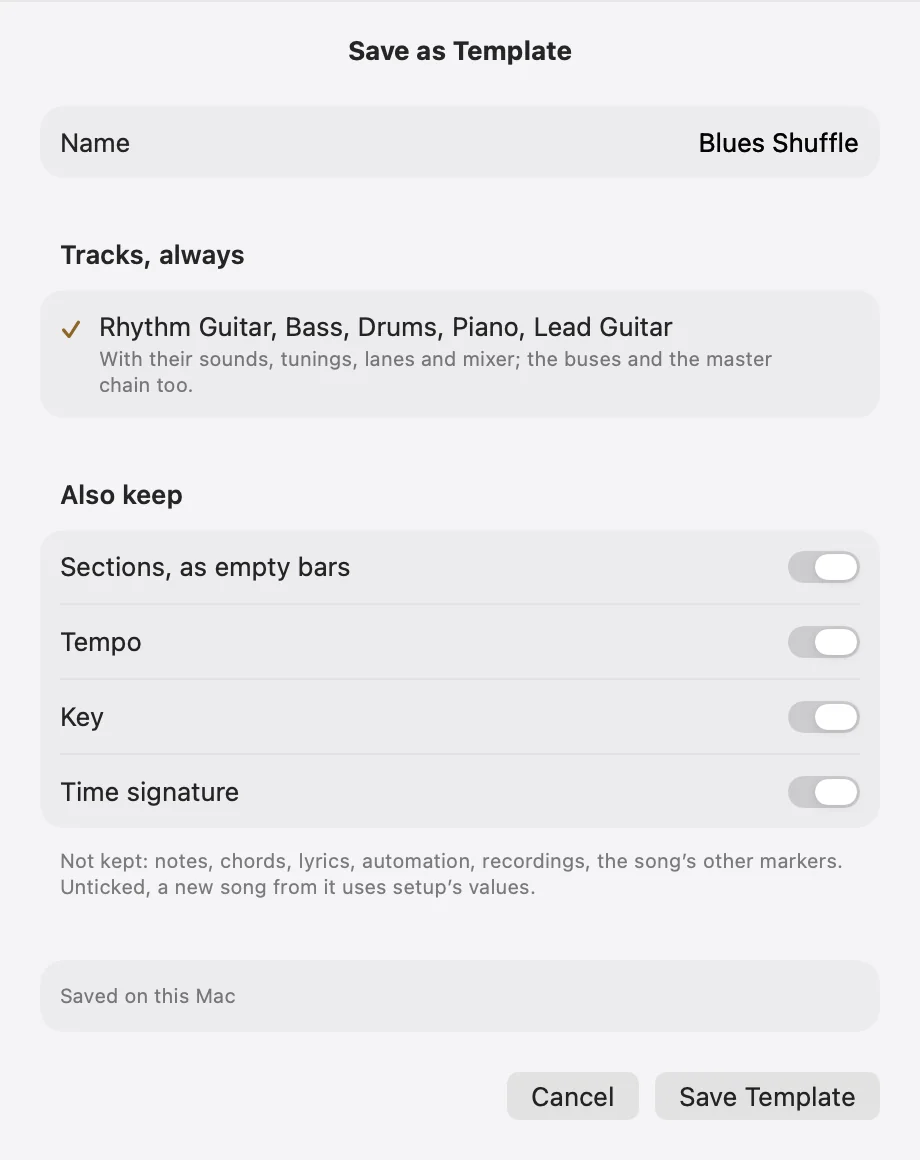
What a template keeps
Always its tracks, in order, each with its name and colour, its whole sound (instrument, amp, cabinet, effects, a kit with its lanes), tuning, strings and capo, and its mixer and sends; the buses and the master’s chain too. Then, as you choose when you save it:
- Sections, as empty bars: Intro, Verse, Chorus… with their lengths, and nothing in them.
- Tempo, Key and Time signature (the song’s first; later changes aren’t kept).
Never the notes, chords, lyrics, automation, recordings or the song’s other markers. A song made from a template isn’t linked to it: changing one never changes the other.
Saving one
To start a song from one, use a shelf’s + card on the home: in New Song setup, Start from lists yours under Yours, after the built-in ones, and its Manage in Settings… opens the page below. If the template kept its sections, setup has a Sections, as empty bars switch: on, the new song has them; off, it starts without. See New songs and templates.
| Command | Keys | Where |
|---|---|---|
| Save as Template… | the File menu |
| Command | Keys | Where |
|---|---|---|
| Save as Template… | the File menu |
| Command | Keys | Where |
|---|---|---|
| Save as Template… | the File menu |
Track presets
Available on every platform.
What a track preset keeps
The track’s kind, name and colour, its whole sound, tuning, strings and capo, a kit’s lanes, and the voices shown as lanes. Include mixer and sends (on at first) keeps its volume, pan and sends too; adding it to a song that hasn’t a bus it sends to makes that bus, with its sound. An audio track keeps its effects: it has no sound of its own to keep.
Saving one
Any of these opens Save as Track Preset, the same dialog everywhere:
- the track’s menu (right-click its header): Save as Track Preset…;
-
the Inspector’s Track section, at its foot;
- the Sound pane’s Presets menu: Save Track as Track Preset… (beside Save Sound as Preset…, which keeps the sound alone).
Its name starts as the track’s; Save keeps it.
Adding a track from one
In a track’s menu, Add Track › Track Presets… opens the picker in a popover over the song: yours first, then the built-in ones (each tuning, 12-string, drums, percussion, keys, the Stab Synth, audio). Search by name, or show one kind (Guitar, Bass, Drums, Keys, Synth, Audio).
| Command | Keys | Where |
|---|---|---|
| Save as Track Preset… | the track’s menu; Inspector › Track; Sound pane › Presets | |
| Add Track from Preset… | the track’s menu › Add Track |
| Command | Keys | Where |
|---|---|---|
| Save as Track Preset… | the track’s menu; Inspector › Track; Sound pane › Presets | |
| Add Track from Preset… | the track’s menu › Add Track |
| Command | Keys | Where |
|---|---|---|
| Save as Track Preset… | the track’s menu; Inspector › Track; Sound pane › Presets | |
| Add Track from Preset… | the track’s menu › Add Track |
Managing templates and presets
Available on every platform.
Where they’re kept
Each of yours is kept on This MacThis PCThis Browser (the browser that saved it, as Your Songs are), with your settings. To take one to another browser or to the apps, Download it from Settings and open the file there.
Settings › Templates & Presets
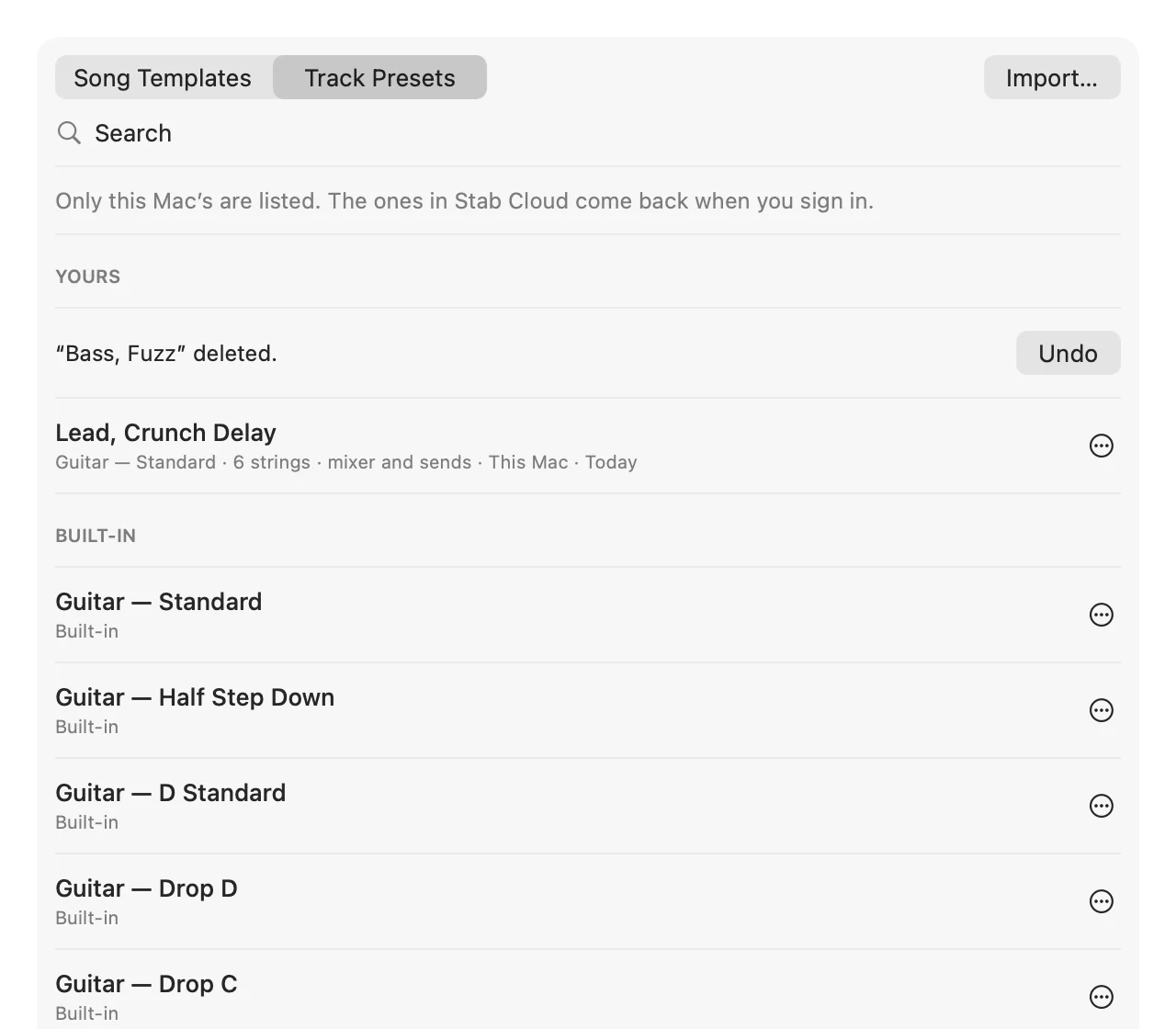
- Rename… and Duplicate.
- Export… saves it as a fileDownload saves it as a file (
.stabtemplateor.stabpreset) to keep or send. Opening such a file in Stab adds it to yours.Such a file opens in Stab on any device; dropped on the web app, or brought in with Import…, it’s added to yours. - New Song from This Template, for a template.
- Delete. It goes at once, with Undo in its place for a moment (and Undo).
Import… adds a template or track preset file. If you already have one of that name, choose Keep Both or Replace.
The built-in ones can be duplicated (the copy is yours to change) and hidden: a hidden one stays in Settings, dimmed, with Show, and leaves the other lists.