
The home
The home is where Stab starts: the song you worked on last, the ways to bring a song in, your songs on shelves (each with a + card to start a new one), and the demos. From a song, Home (⇧⌘H)Home (Ctrl+Shift+H)Home brings you back to it.
The home
Available on every platform.
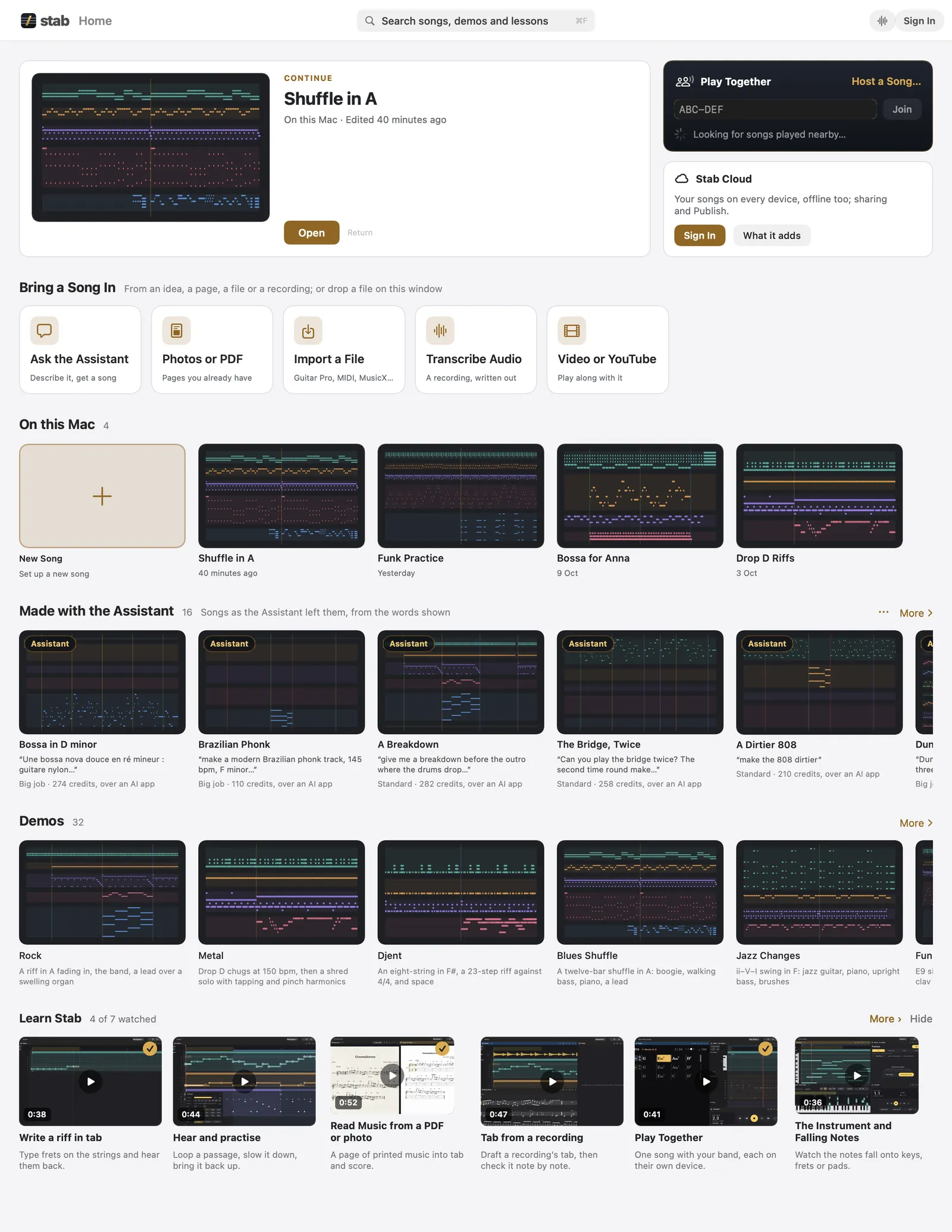
At the top, the home’s bar holds the wordmark, a search field (⌘FCtrl+F; in a narrow window, a shorter box or a ⌕ button, whose field opens over the menus) that finds your songs, the demos and the Learn Stab videos as you type, the plan’s pill when there’s something to say (below), Sound Library, ? (Help, Alt+H or ⌥H on a Mac: Stab Help, Learn Stab, the Welcome Tour, About Stab and Acknowledgements, as in the Help menu over a song; see Finding help) and the gear (Settings). Your name and colour for Play Together, and your licence, are in Settings (Account and Purchases).
Then, from the top down:
- Continue. The song you worked on last (the one you last opened or saved: a copy made with Duplicate waits until you open it): its cover, large, beside when you last changed it, what it is (its key, tempo, time signature, how many bars and how long) and its tracks. Continue (↩)ContinueOpen opens it. Its line says where you left it: the bar, or the bars you looped and at what speed (“Bar 1–4 looped at 75 % · yesterday”), and it opens there, the loop on at that speed; Open at the start, beside it, opens it at the first bar, the loop off (its bars kept) and at 100 %. A song that has become shorter since, changed on another device, opens at its last bar. The first time, before you have a song, Start here stands in its place, with Open a Demo (the Welcome demo). Beside it, the Play Together card (below).
- Bring a Song In. A card for each way a song comes in, each opening its own dialog: see Bringing a song in, below.
- Shelves. Your songs, newest first: the ten you changed last on each shelf. On this MacOn this PC holds the songs kept on this device.On the web, Your Songs holds the songs kept in this browser or in the folder you chose, and its card says where they are, with Open…, Trash and Download All (see Where your songs are). Each shelf of your own starts with a + card that sets up a new song there (see New songs); a shelf with nothing on it yet shows that card and a line, after the shelves that have songs. After them, a small Play Together card (host a song, or join with a code: see Joining). After your songs, Opened Files holds the files you opened from outside your library (see Opened Files). Then Demos (see The demos).
- Learn Stab. Short videos of what Stab does, each with Try It to do it for real, and how many you’ve watched (“3 of 6 watched”). They come after the shelves and the demos. Hide puts them away; Learn Stab shows them again. See Finding help.
- At the foot, quiet buttons for what’s there: Recently Deleted (see Recently Deleted).
Every song shows its cover, a picture Stab draws each time the song is saved (while it’s open, at most once a minute, and again when you close it), the same on every device: its first page as printed (with its title) for a song last saved in the Score, or brought in from printed music or MusicXML; its first rows on paper for a chord chart; otherwise its first bars as Stab shows them, each track’s notes with their frets, the drums as dots and the sections named. A song that has no cover yet (not saved since) shows its name, large, on a colour of its own.
A song’s card says what matters about it in one line under its name: two versions to choose between, people asking to join it, a session playing it (“Live: Anna, Ben”, with their faces), that it’s open on another device, whose it is and your part in it (“Anna · Can Edit”), or when it was changed. A brass dot before the name means it’s open in a window here. In its top corners: New, Can View or Read only on the left, and on the right only while it isn’t up to date, whether it’s going up, coming down, waiting for a connection, or has a newer version from another device.
More › at the end of a shelf’s heading shows every song on it, with a search field of its own: what you type finds songs on that shelf by name. ‹ Home goes back.
A song’s card has a menu of its own (right-click, or a long press on touch screens): see Your songs.
| Command | Keys | Where |
|---|---|---|
| Home | ⇧⌘H | the Window menu |
| Continue | ↩ | the home › Continue |
| Command | Keys | Where |
|---|---|---|
| Home | Ctrl+Shift+H | the File menu; the title bar’s Home button |
| Continue | the home › Continue |
| Command | Keys | Where |
|---|---|---|
| Home | the Session menu; the phone’s ‹ | |
| Open | the home › Continue |
Bringing a song in
Under Continue, Bring a Song In has a card for each way a song can come in on the web: Import a File and A YouTube Video (photos of printed music and recordings are read in Stab on a Mac or a PC). Each opens a dialog that says what it does first:
- Take a Picture: photograph each page of printed music in order; the song opens beside its pages, read into notes. See Photos of music.
- Photos or PDF: pages you already have, in their order, read into a song you can name.
- Import a File: choose a Guitar Pro (3 to 8), MIDI, MusicXML or iReal Pro file, a PDF, or a recording to play along with; it’s copied in, the original never changed.
- Transcribe Audio: choose a recording or Record… one, and Stab writes it out as tab for a guitar or a bass, optionally taking the part out of a band’s mix first, and finds the beats and the chords. The recording stays in the song under the tab. See Write Tab from Audio.
- Video or YouTube: a video file, or a YouTube link,A YouTube Video: a YouTube linkA Video: a video file to play along with in the song’s Video pane, the bars pinned to its beats.
New songs and templates
Available on every platform.
Each shelf of your own starts with a + card. It opens New Song setup for a song on that shelf:
- Name, if you’d like one now.
- Start from: Last Time (the setup you made last on this device) first, then the built-in templates: Guitar, Band, Bass, Drums, Piano, Chord Chart (the song’s chords to write, with a band to play them: it starts with four chords in its key, twice, so the band plays at once) and Empty (one you hid in Settings isn’t offered). Then Yours: your own song templates, this device’s, this browser’s. A template fills in the rows below; change anything before Create. One of yours starts the song from the template, with its sounds, buses and, unless you switch Sections, as empty bars off, its sections, then makes what you changed: a removed instrument isn’t there, a renamed one, another capo or tuning, an added one, and the key, tempo and time signature you chose. Manage in Settings… opens Settings › Templates & Presets.
- Instruments: each with its sound and, for a guitar or a bass, its tuning and capo. Add Instrument adds another. An instrument’s ⋯ menu has Change Sound…, Duplicate (a copy of it right after it, with the same sound, tuning and capo; not for Chords or the Smart band, which a song has once) and Remove.
- Song: the key, the tempo (or Tap it), the time signature, and for a Chord Chart the style its band plays. With one of your templates that has sections, Sections, as empty bars (on) keeps them in the new song, the bars between them empty; off, the song starts with none.
Create opens the new song. The + card says what you set up last: its template’s name (“Set up · last: Band”), or its instruments when you changed them (“Set up · last: Guitar and Bass”); its menu (a right-click) makes the last setup at once, or a template, built-in or yours, as it comes.
| Command | Keys | Where |
|---|---|---|
| New Song… | ⌘N | the File menu; the home |
| New Song as Last Time | ⇧⌘N | the File menu; the home |
Not on Mac: New from Template.
| Command | Keys | Where |
|---|---|---|
| New Song… | Ctrl+N | the File menu; the home |
| New Song as Last Time | Ctrl+Shift+N | the File menu; the home |
Not on Windows: New from Template.
| Command | Keys | Where |
|---|---|---|
| New Song… | the home | |
| New Song as Last Time | the home |
Not on Web: New from Template.
Opened Files
Available on Mac and Windows. Not on Web.
This isn’t on Web.
Opened Files is a shelf of files that stay where they are: the Guitar Pro, MusicXML and MIDI files you opened from File Explorerthe Finder or Open…, and the songs of a folder you brought in that didn’t come in as songs of your own. Nothing is copied: each card points to its file in its folder, and its line says which folder (“In “Tabs””). The last one you opened comes first. The shelf shows only once it has files. A file you rename or move to another folder on the same disk keeps its card, which follows it.
A file on it opens read only, as any file from outside your library does: play it, loop it, look at it in every pane, print it and export it. The strip at the top says so, with Keep in My Songs, which makes it one of your songs, to edit and practise, and takes it off the shelf (the file itself stays in its folder).
A card’s menu (right-click or Control-click) has Open, Keep in My Songs, Show in File ExplorerShow in Finder and Remove from Opened Files, which takes it off the shelf and leaves the file alone. A file that has been moved or renamed, or is on a drive that isn’t connected, says Moved or renamed in the warning colour; opening it asks whether to remove it. Stab never removes one by itself, so a drive plugged back in brings its files back.
The demos
Available on every platform.
The demos are finished songs in many styles (rock, metal, jazz, bossa nova, chiptune, flamenco and more), each with its own tracks and sounds. They’re a quick way to hear what Stab plays and to see how a song is built.
The Demos shelf is at the bottom of the home; More › shows them all. Selecting one opens it read only, as Welcome is: play it, look around every pane, print or export it. Keep in My Songs, on the strip at the top of the song, makes it one of your songs, to edit and practise.Selecting one opens it to try, as Welcome is: change anything, and nothing is saved unless you keep it in Your Songs when you leave it. With no songs yet, Open a Demo on the Start here card opens Welcome. New from Demo in the File menu makes a song of a demo at once, named after it, in your songs.
| Command | Keys | Where |
|---|---|---|
| New from Demo | the File menu; the home |
| Command | Keys | Where |
|---|---|---|
| New from Demo | the File menu |
| Command | Keys | Where |
|---|---|---|
| New from Demo | the home |
The Welcome demo
Available on every platform.
The first time you open Stab, the Welcome to Stab sheet offers three ways to start. Write a riff makes your first song, My First Riff, at once: one guitar in 4/4 at 100 bpm, the caret on the low E at bar 1. A card at the bottom right takes you through three steps and ticks each one as you do it: type 0, then → and 3, then → and 5, and Space plays it back. The song is saved as you go. Once it plays, the card offers Hear and practise, the next Learn Stab tutorial, and a note says the song is in My Songs. Bring in your files opens Import a File for a Guitar Pro (3 to 8), MusicXML or MIDI file; dropping files or a folder from the FinderFile Explorer onto the sheet does the same. Play a demo opens Funk Groove read only, as Welcome is. Write a riff is the one ringed: ReturnEnter chooses it, and Esc opens Welcome. The sheet’s foot says where you stand: Free Stab and Enter Licence Key…, or your licence. The sheet shows once. Welcome Tour, in the Help menuthe Help menu or the home’s Help button (?), shows the welcome tour whenever you want it: what Stab does, a slide at a time (writing, bringing music in, practising and playing together), ending with Open a Demo, New Song and Import….
The first time you open Stabvisit, a short welcome tour shows what it does, a slide at a time: writing, bringing music in, practising and playing together. Skip leaves it at any point. It ends with three ways in: Open a Demo opens a song called Welcome, New Song starts one from the Guitar template, and Import…Open… brings in a file of yours. Open a Demo is the one ringed: Return, Esc and closing the tour choose it. Skipping it opens Welcome. Welcome Tour, in the Help menuthe Help menu or the home’s Help button (?), shows the tour again.
?intent=learn, write, band, read or look) opens a song for that choice instead, with a card that says what to try.Welcome is a demo, and it opens read only: every pane and view works, it plays, prints and exports, and the free version never limits it. Under its title, the window says Demo · read only, and a strip under the title bar says what it is and holds its one button (“Read only: changes here aren’t kept. Play, loop and look around; keep this demo to edit and practise it.”, Keep in My Songs).A strip under the title bar says what it is and holds its one button (“Read only: changes here aren’t kept. Play, loop and look around; keep this demo to edit and practise it.”, Keep in My Songs). A card over the song shows how to play it and see it other ways. You can loop a passage in it; the first time you do, a note at the foot of the pane says “Changes here aren’t kept”, with Keep, and closing it drops the loop without asking.
Keep in My Songs (or Save (⌘S)Save (Ctrl+S)Save (not on Web)) makes it one of your songs, to edit and practise: a note in the corner says so (“Kept in My Songs.”), and the strip goes. Keeping is never limited.
On the web, Welcome is a demo to try: every pane and tool works, and you can change anything, but nothing is kept. A line beside its title says so: “Demo: not saved unless you keep it”.
When you leave it after changing it (closing it or going home), Stab asks whether to keep your changes:
- Keep in Your Songs makes it one of your songs, with your changes.
- Don’t Keep closes it and keeps nothing.
If you didn’t change it, nothing is asked.